Three editors in one app.
Upload a floor plan or draw one, change the walls, furnish the rooms, ask the AI for options and share the result. Homeowners, interior designers and architects each get their own editor on the same 3D home.
Which editor is yours?
Each one shown on the same furnished duplex.
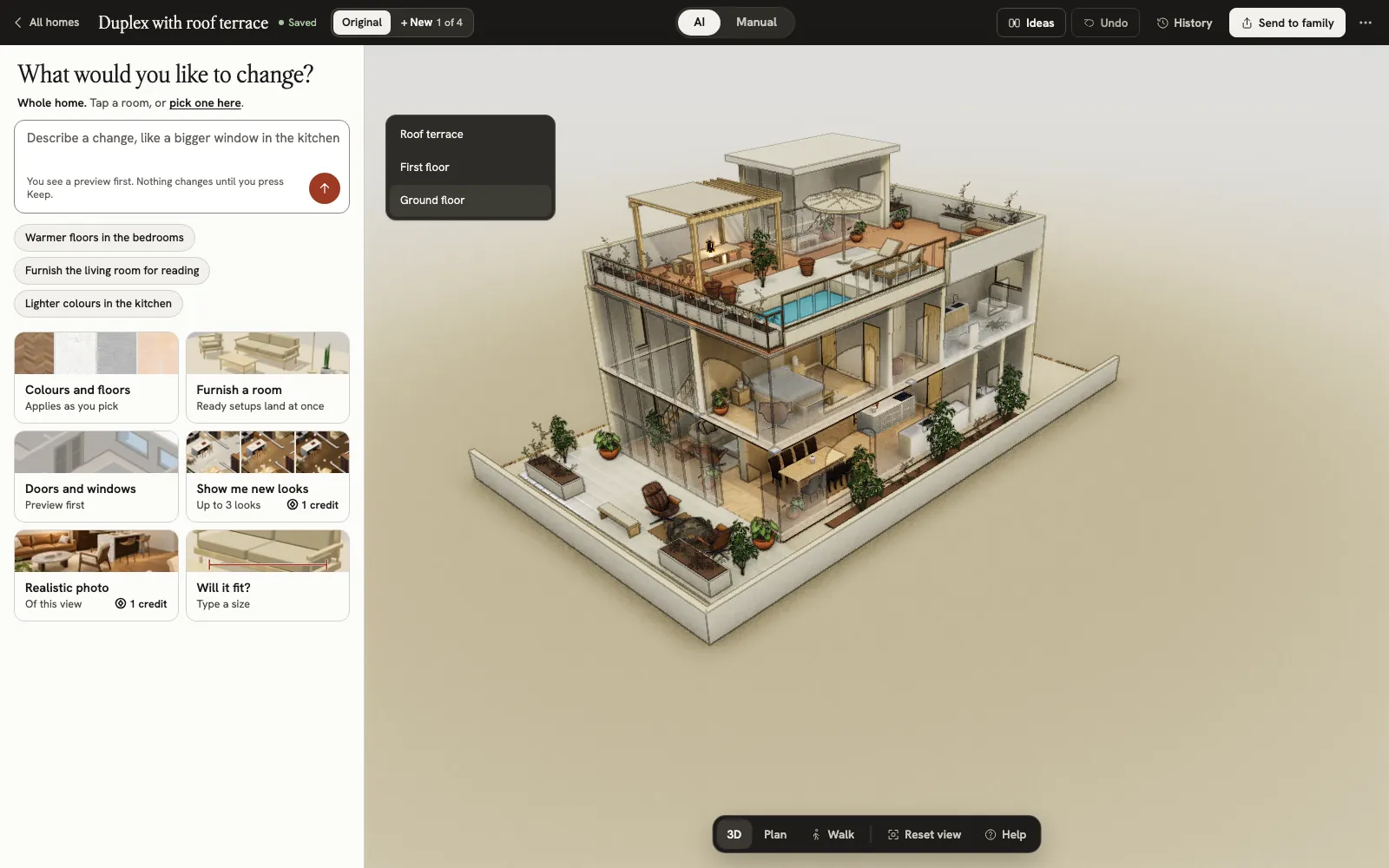
AI mode: “What would you like to change?” For homeowners
Who it’s forYou are changing your own home and want to see it before you spend.
How it works for homeownersBest at- Ask for a change in plain words and see a preview before it lands
- Move or remove walls, add doors and windows
- Paint walls, change floors and furnish rooms at real size
- Send the home to family, download pictures and the plan
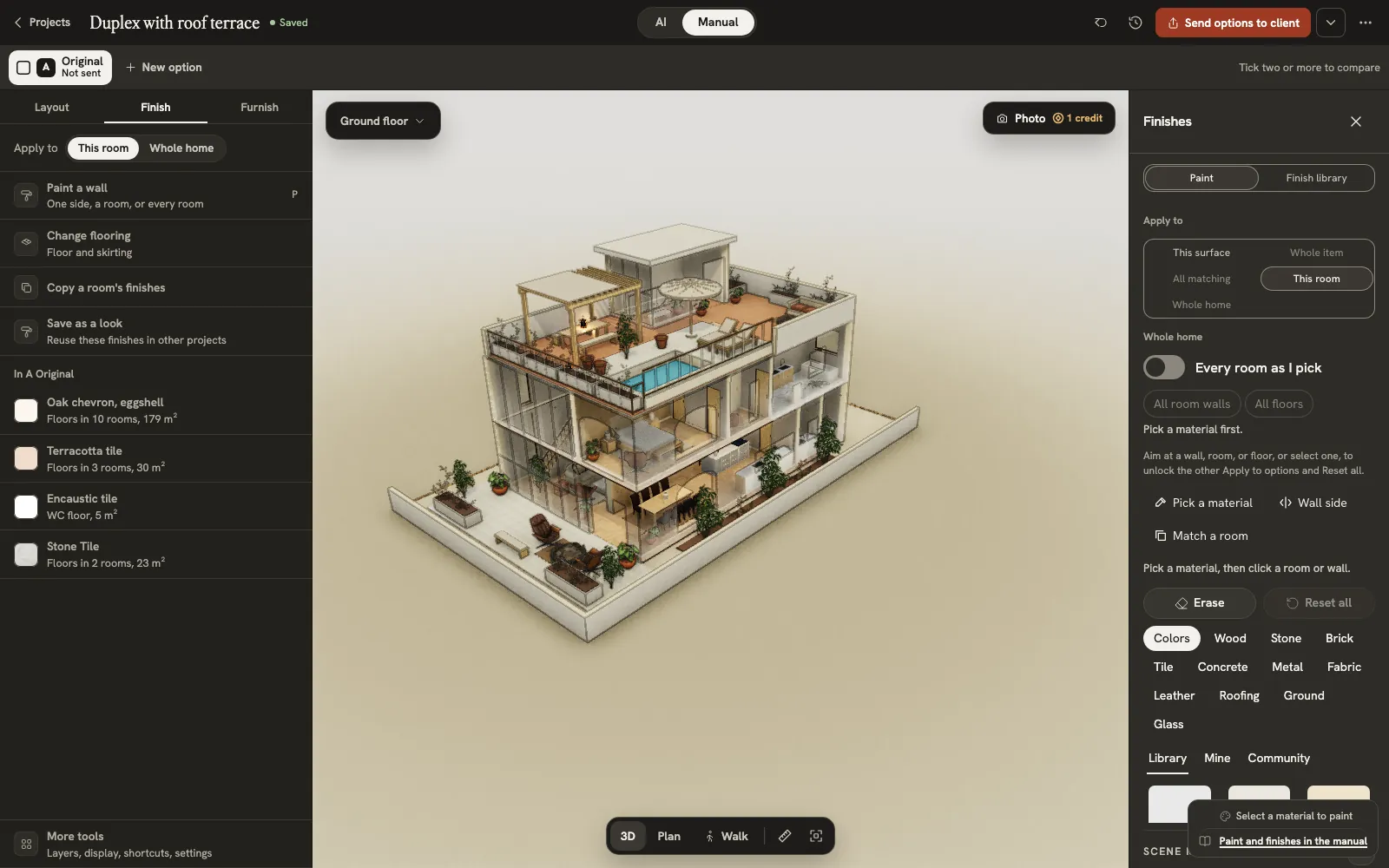
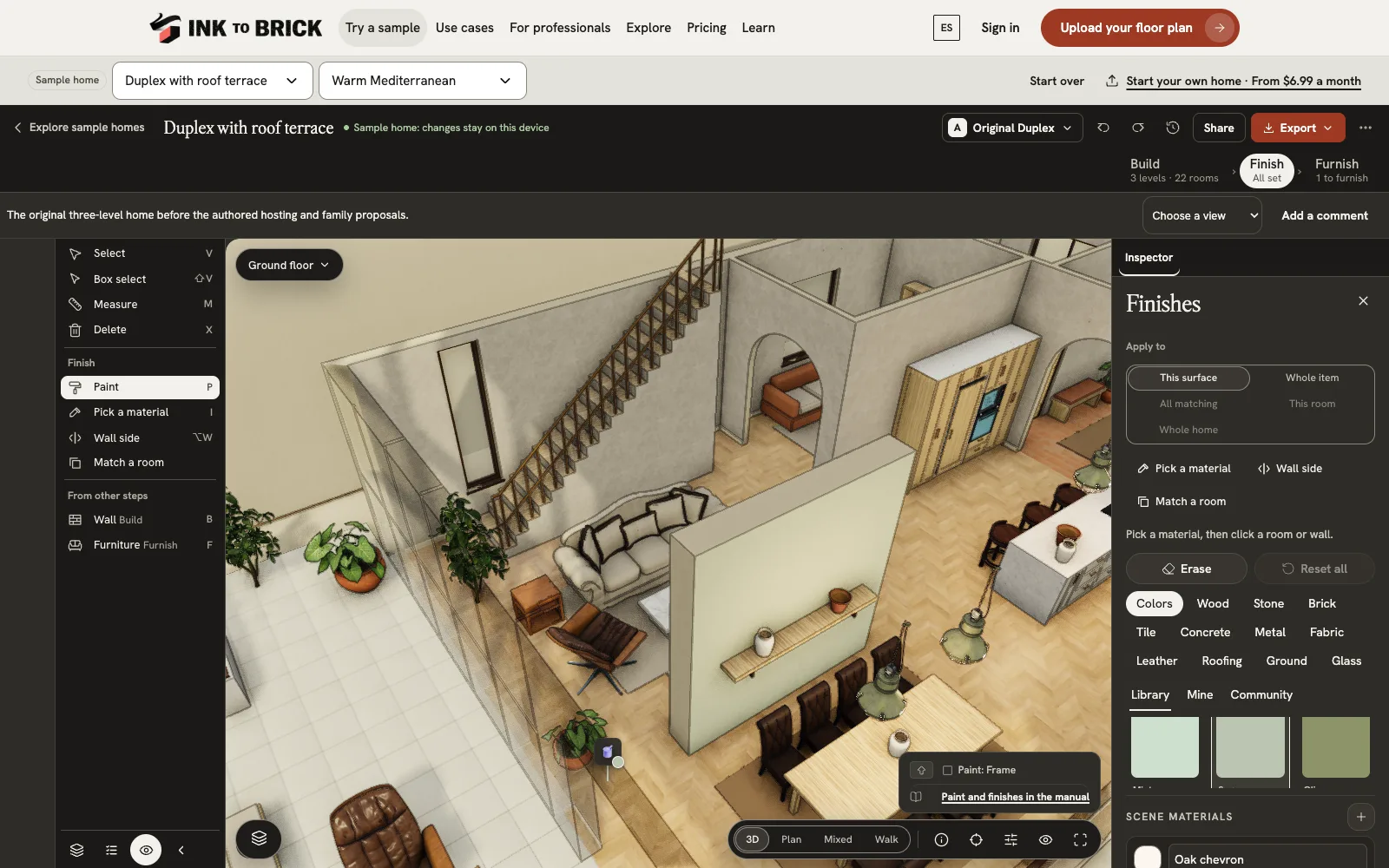
Finish step, finishes panel open For interior designers
Who it’s forYou furnish and finish rooms for clients and need them to choose.
How it works for interior designersBest at- Finish one side of a wall, a room or the whole home at once
- Draw new partition walls and lay out kitchen runs
- Save a look and reuse it in another room
- Send options to a client and see which one they pick
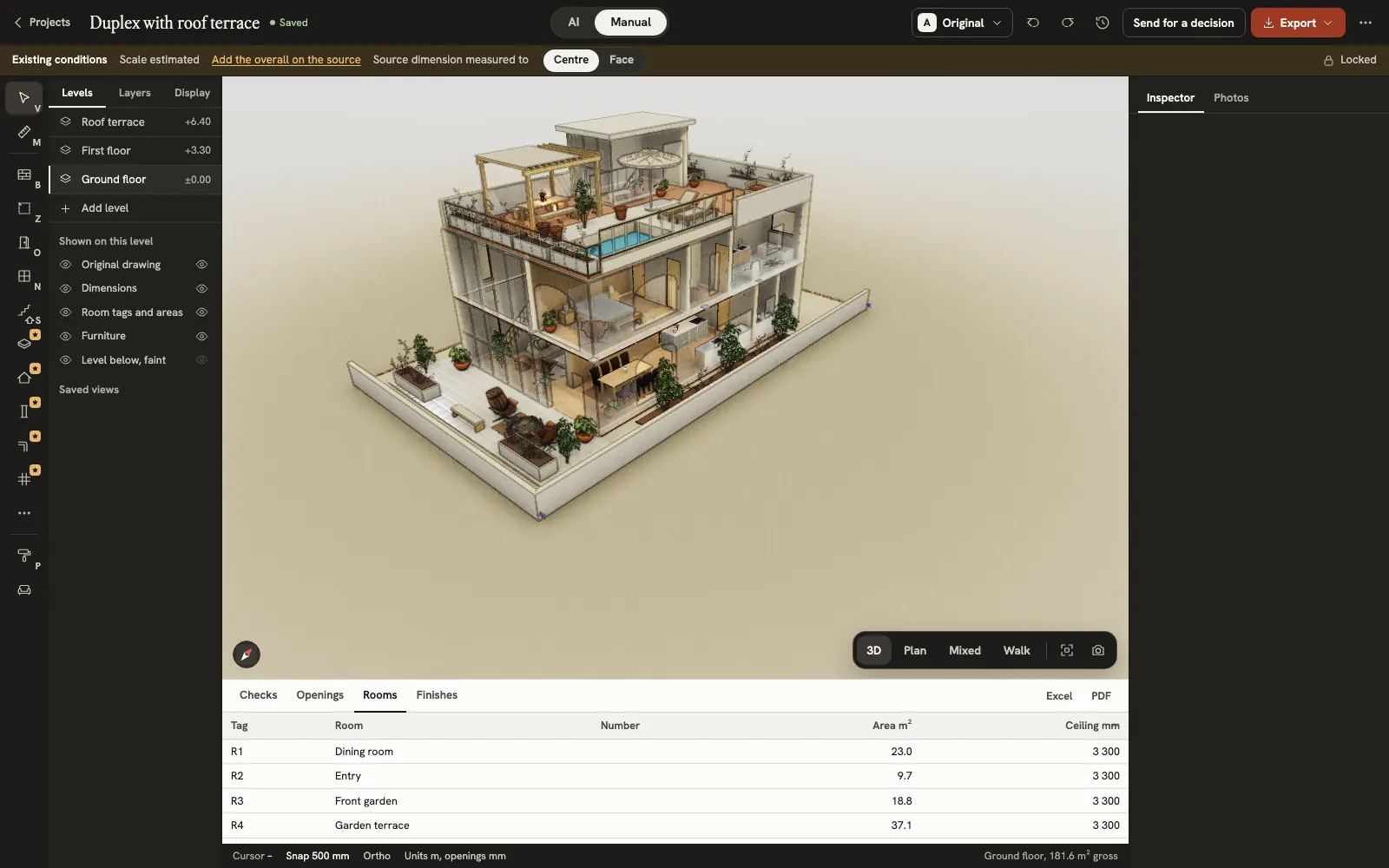
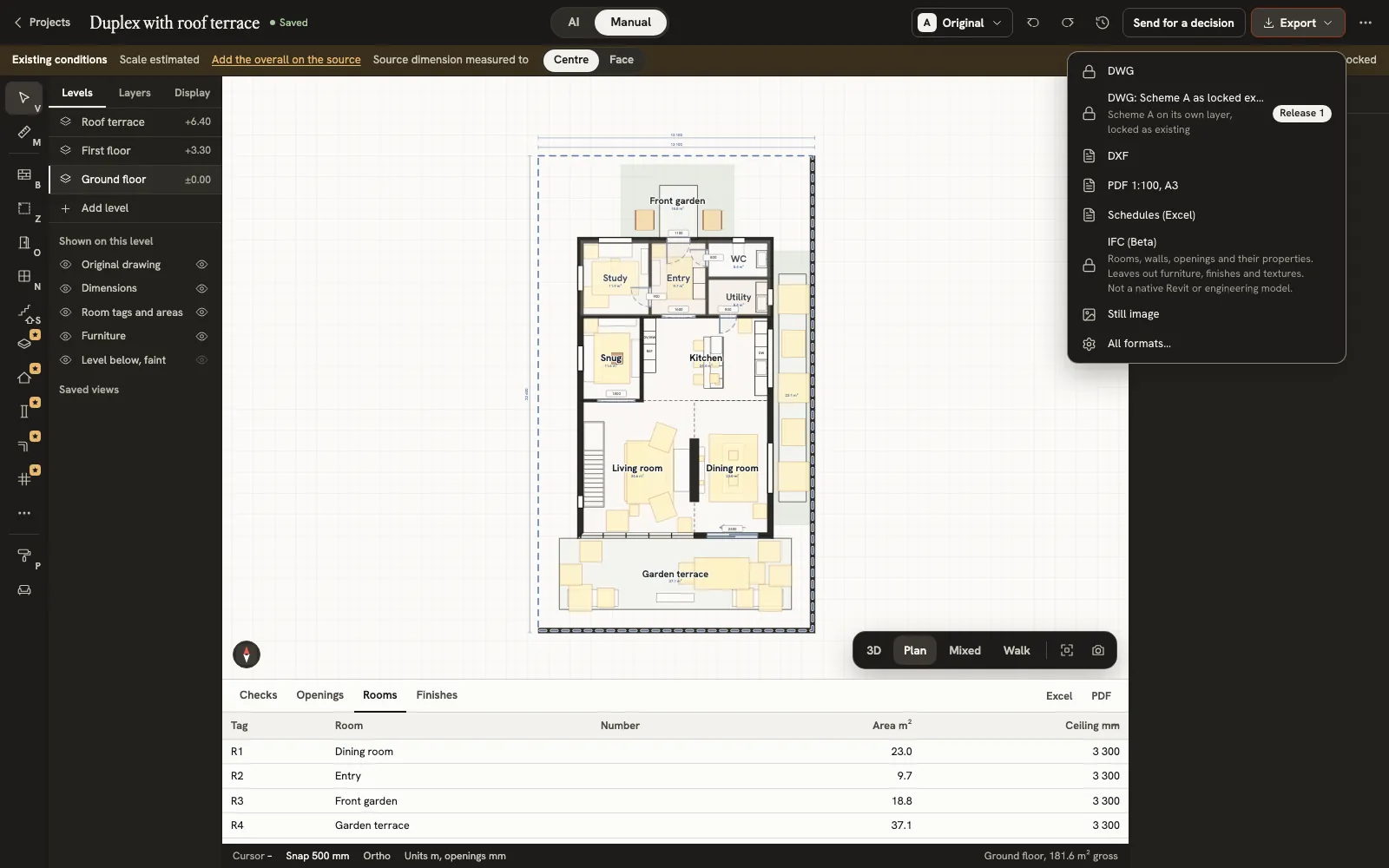
Manual mode: tool dock and room schedule For architects
Who it’s forYou draw the whole building and hand files to the people who build it.
How it works for architectsBest at- Every drawing tool in one dock, each with a key
- Slabs, roofs, structure, the lot, and pipes and ducts
- Lock what exists today, then try schemes over it
- DWG, IFC (beta) and SketchUp among 20 export formats
Pick your editor in Settings and change it whenever you like; your home stays the same. Your plan decides which tools unlock.
Compare plansWhat you can do in the editor
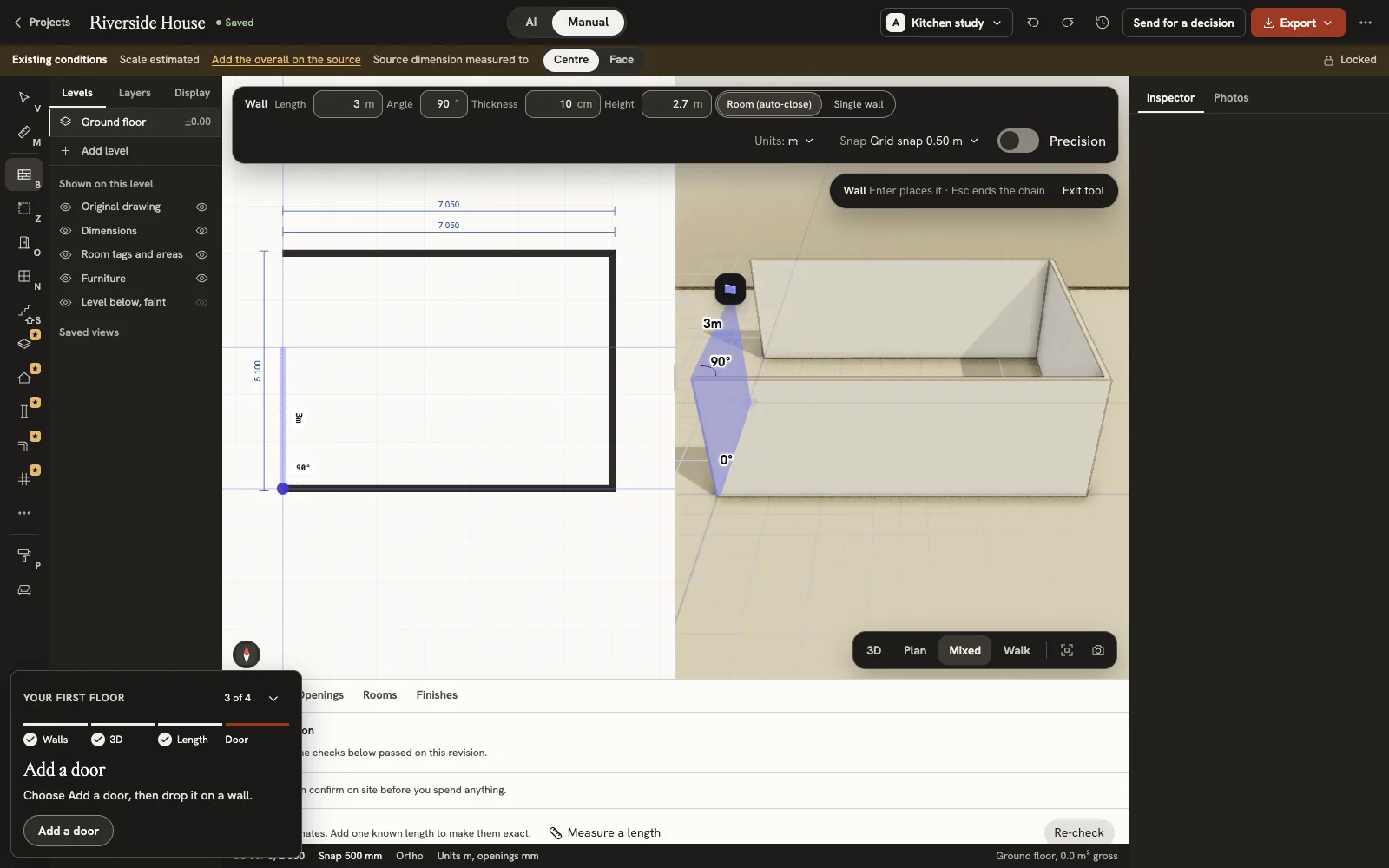
Draw or upload
- Upload a floor plan as PDF, PNG, JPEG, SVG or DXF, and we read the rooms and sizes.
- Have a sketch? Take a photo of it and upload that.
- No plan yet? Draw the walls in 2D and watch them rise in 3D.
- Add the next floor from its own plan, or draw it over the one below.
- See the home as a plan, in 3D, both side by side, or walk it at eye height.
- Check the model against the drawing you uploaded.
Walls and rooms
- Drag a wall to make a room bigger or smaller.
- Take a wall out. The editor first asks whether it holds anything up.
- Add doors and windows, widen a doorway or cut a new opening.
- Outline a room and it keeps its name and area.
- Connect floors with a stair, then set its width and steps.
- Measure any distance, angle or area without changing anything.
- Draw new walls with exact lengths, thickness and height.Designer and architect editors
- The building tools add roofs (9 types), columns, terrain, and ducts and pipes.
Furnish and finish
- Place furniture at its real size, from a library sorted by collection.
- Type a size and see whether a piece fits the room.
- Furnish a whole room in one go.
- Pick a paint, wood, stone or tile, then click a wall or a floor.
- Give one room the look of another.
- Mark where a kitchen run starts and ends, and it fills with cabinets.Designer and architect editors
Ask the AI for options, or do it yourself
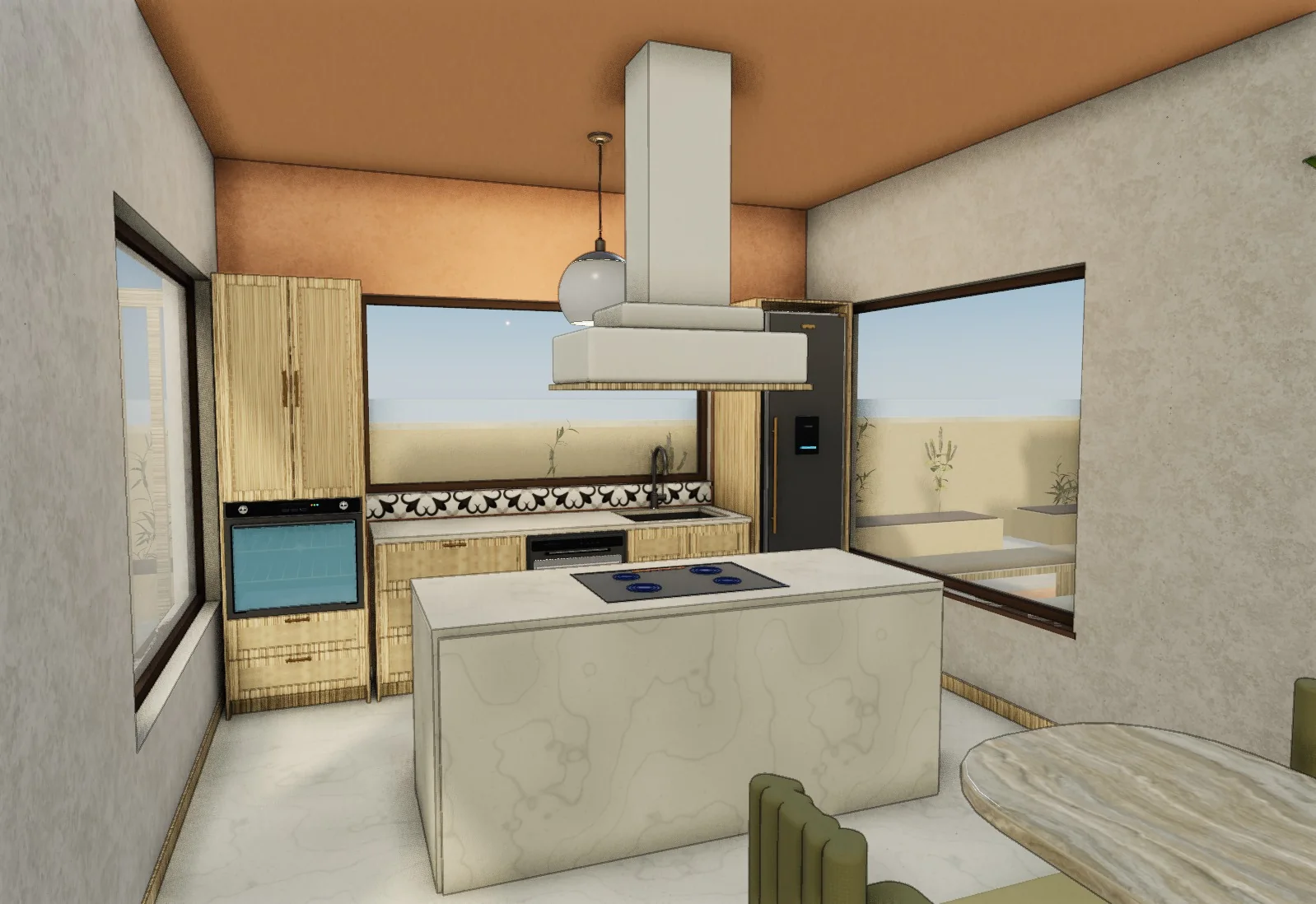
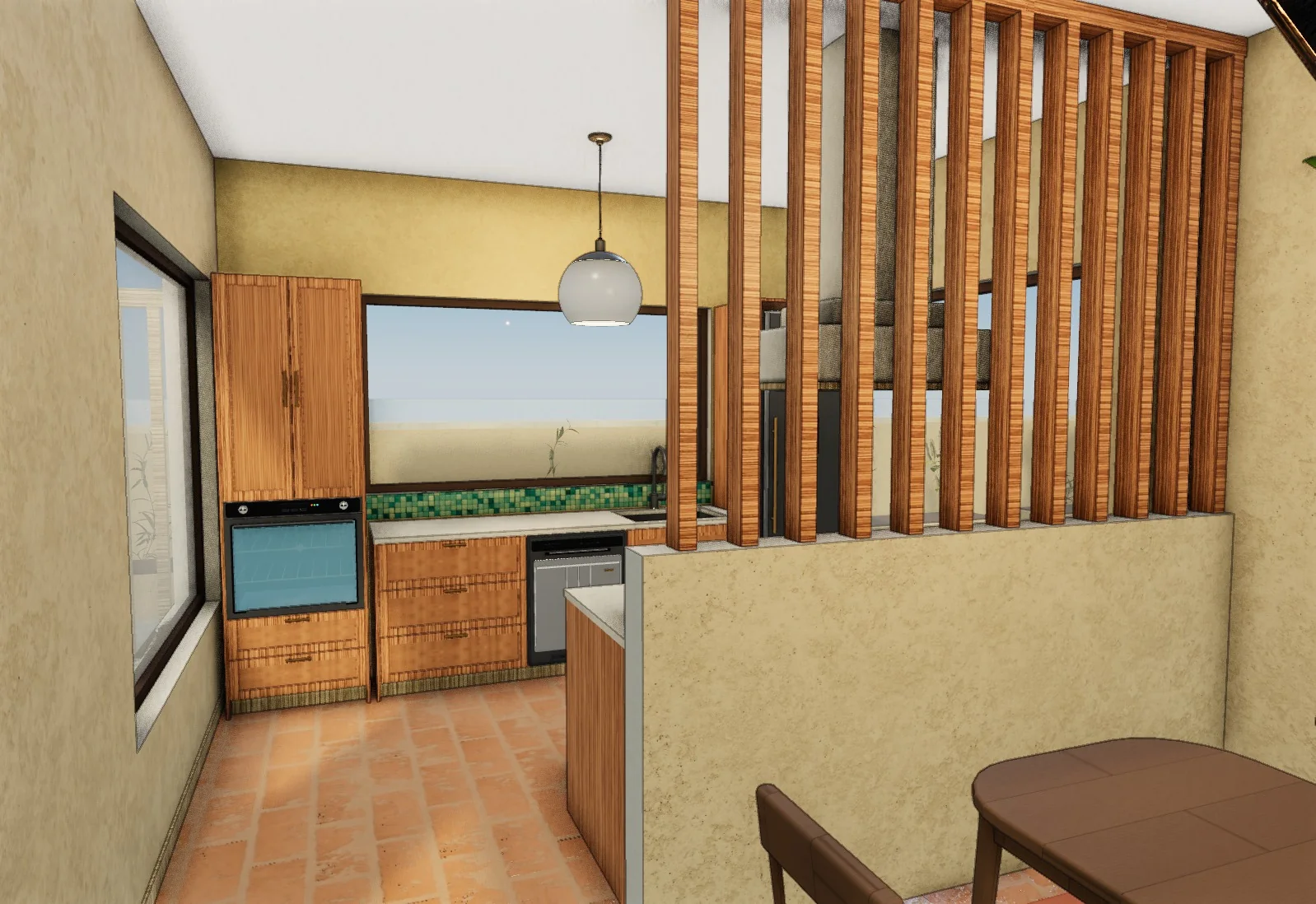
- Describe a change in your own words. You see a preview, and nothing changes until you press Keep.
- Ask for ideas and get up to three options a round.
- Ask about a room, like whether a queen bed fits.
- Anything the AI adds is an ordinary wall, piece or finish you can change by hand.
Walk inside this home“We want a kitchen where we can cook and talk, with proper preparation space and storage. Keep both patios and the bedrooms as they are.”
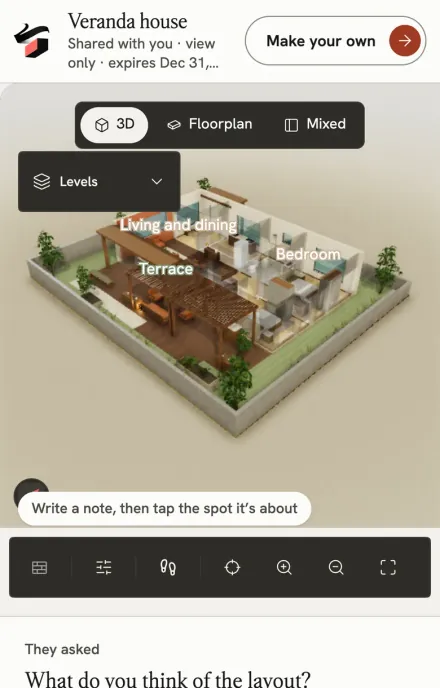
Share and export
- Send a link. Anyone with it can look around the home.
- Leave notes on the model. They stay with the project.
- Keep several versions of the home and compare them side by side.
- Go back to any saved point, or to the original.
- Turn a view into a lifelike photo of the room.
- Download a picture of the view, the plan as PDF, photos and the 3D model.Homeowner editor
- Export plans, 3D models, schedules and images.Designer and architect editors