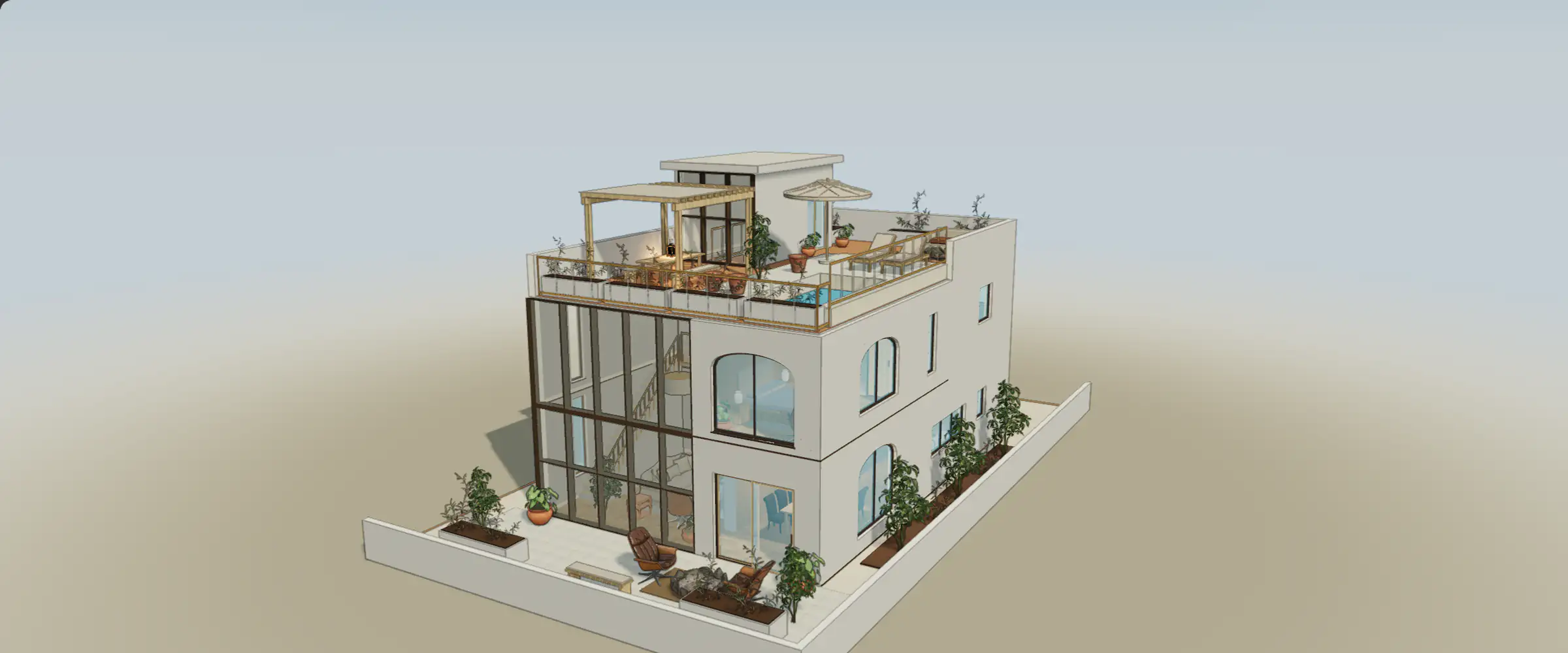
Undo is the quickest way to recover from a misplaced chair, the wrong painted surface or an accidental deletion. It changes the current editing session. A local draft, a saved project version and a design option serve different purposes; do not treat them as interchangeable backups.
Check undo and redo
- Make one small change, such as moving a chair away from a doorway.
- Use Undo or press Cmd/Ctrl + Z. Confirm that the chair returns to its previous position.
- Use Redo or Cmd/Ctrl + Shift + Z. Confirm the same change returns, then keep or undo it deliberately.
Keep alternatives before making larger changes
Undo and redo affect the active option. Switching sample options starts a new undo history boundary, and refreshing or clearing storage does not preserve that undo stack. Preserve an arrangement as a design option before a larger experiment. On /try, each home stores its options, drafts and sample comments in this browser. The account save indicator describes a different workflow: it tells you whether a project change has reached the project’s saved state.
Inspect project history
On your own project, History lists available versions and identifies who made a change. Its controls can view an earlier version, compare it with now and restore a version when your access allows it. Restoring makes a new version; earlier versions remain available. Finish or discard an active preview before attempting a conflicting change. If history cannot load, use Retry history and keep the current editor open.
Recover a sample storage failure
If the sample warns that changes cannot be stored, keep the tab open and avoid reset. Browser storage may be unavailable, full or removed by private-browsing settings. Do not assume a refresh will preserve the scene. The anonymous sample does not export a scene backup; starting your own home also does not transfer the open sample draft. A screenshot records appearance but cannot restore editable objects.
Reset only when you intend to start again
Reset is scoped to the selected sample home and clears its local work, including options and sample comments. Read the confirmation and choose cancel if anything should remain. Other sample homes have separate storage. Starting your own home opens the existing creation journey; it does not transfer or back up sample changes.
For a real project save error, preserve the open tab and inspect whether the problem is access, a network error or conflicting edits. Repeatedly uploading the original plan does not recover those changes. Use the recovery guide before accepting a replacement or starting another conversion.
Inspect a reference in 3D
Orbit the model and zoom toward an opening. Which spaces does it connect, and what is hidden from the opposite angle?