If the editor says Changes not saved, keep that tab open and read the message before switching options or reloading. The drawing on the canvas, a recovery copy on this device and a saved project revision are different things. This guide helps you protect the first while you establish the last. It covers editor changes; a failed reconstruction has its own recovery flow.
1. Identify where your work is stored
2. Download a backup before replacing or leaving
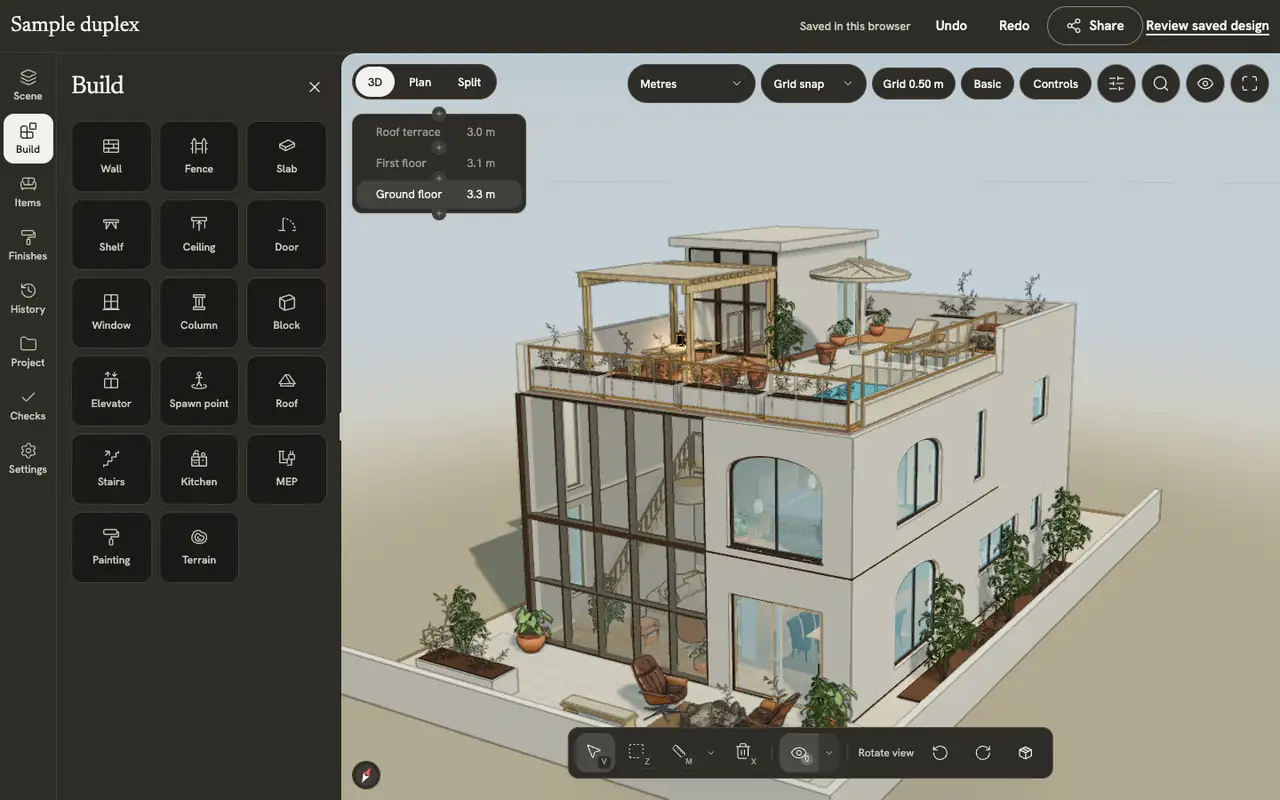
In a conflict banner, choose Download backup to keep the current drawing as a JSON file. The editor’s Settings tab also has Save & Load → Save Build for a scene backup. Confirm that a non-empty file downloaded and keep it with the project and option name. A file backup does not create a cloud revision or publish a view link.
Browser recovery can help when reopening the same work on the same device, but do not treat it as your only backup. A different browser or device does not carry that local draft, and clearing site data can remove it. If local recovery itself reports a problem, download the visible scene before closing the tab rather than assuming the storage succeeded.
3. Retry a save when there is no revision conflict
When the banner offers Retry, resolve the stated condition, such as a lost connection or unavailable access, then choose Retry. Wait for the save status to change. A message saying that your drawing is saved on this device does not mean it has synced to the project. If retry still fails, preserve the backup and the visible message; repeatedly refreshing is not a substitute for resolving the blocker.
If you are trying your first one-floor model before purchase, Save opens the floor purchase flow. Your local edits can remain available while you arrange access, but saving them to the project requires purchasing the floor. A completed payment is separate from a completed save: return to the drawing and confirm the save status. If the original reconstruction still needs checks resolved, follow that message before trying to save the draft as a project option.
4. Choose how to resolve a revision conflict
For example, you moved a sofa in one tab while a colleague saved a wall change in the same option. Save my version as a new option preserves your drawing separately; it does not add their new wall change to it. Compare the two options, agree which changes to keep, and apply any missing change deliberately. If an option was archived elsewhere, follow the notice to download a Save Build backup before switching or reloading.
If the editor is Read only, check the workspace role and project assignment with someone who can manage access. Viewers cannot save edits. An editing seat alone does not assign a home, and reloading does not grant permission. Keep your backup while the stated access issue is resolved.
5. Restore a file only after reviewing what it replaces
Load Build in the editor’s Settings tab validates the JSON and shows a review before you confirm replacement. Read the file name, contents, errors and warnings, and back up the scene currently open. It replaces the scene rather than merging the backup into a colleague’s latest work. Unsupported drawing tools can block loading under your plan. Confirm only the intended replacement; Cmd/Ctrl + Z can undo that replacement as one step, and the restored drawing still needs a successful project save.
6. Check that recovery is complete
- Confirm the project and design option, then wait for All changes saved.
- Open Review saved design and check one distinctive recovered change, such as the sofa’s position, against the drawing you meant to keep.
- Only after saving, reopen the intended option and confirm that change again. Keep the backup until the recovered revision is verified.
- Before sharing or exporting, choose that saved revision. If you still cannot save, record the project identifier, option name, action and visible error for private support.
Continue with comparing saved options, scene backup and export or reconstruction recovery if the model build itself stopped.
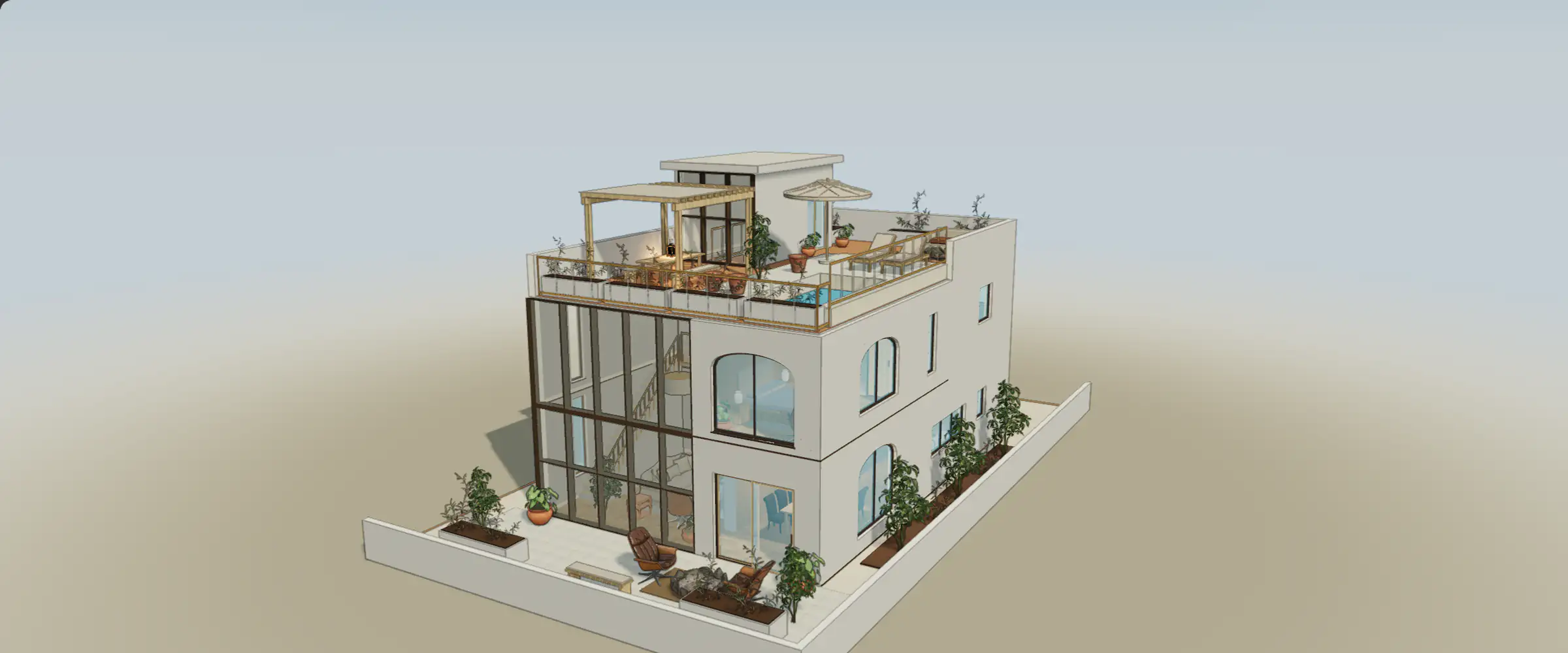
Inspect a reference in 3D
Zoom in, then use Fit model to see the whole model again. This reference does not recover your project or reproduce its error.