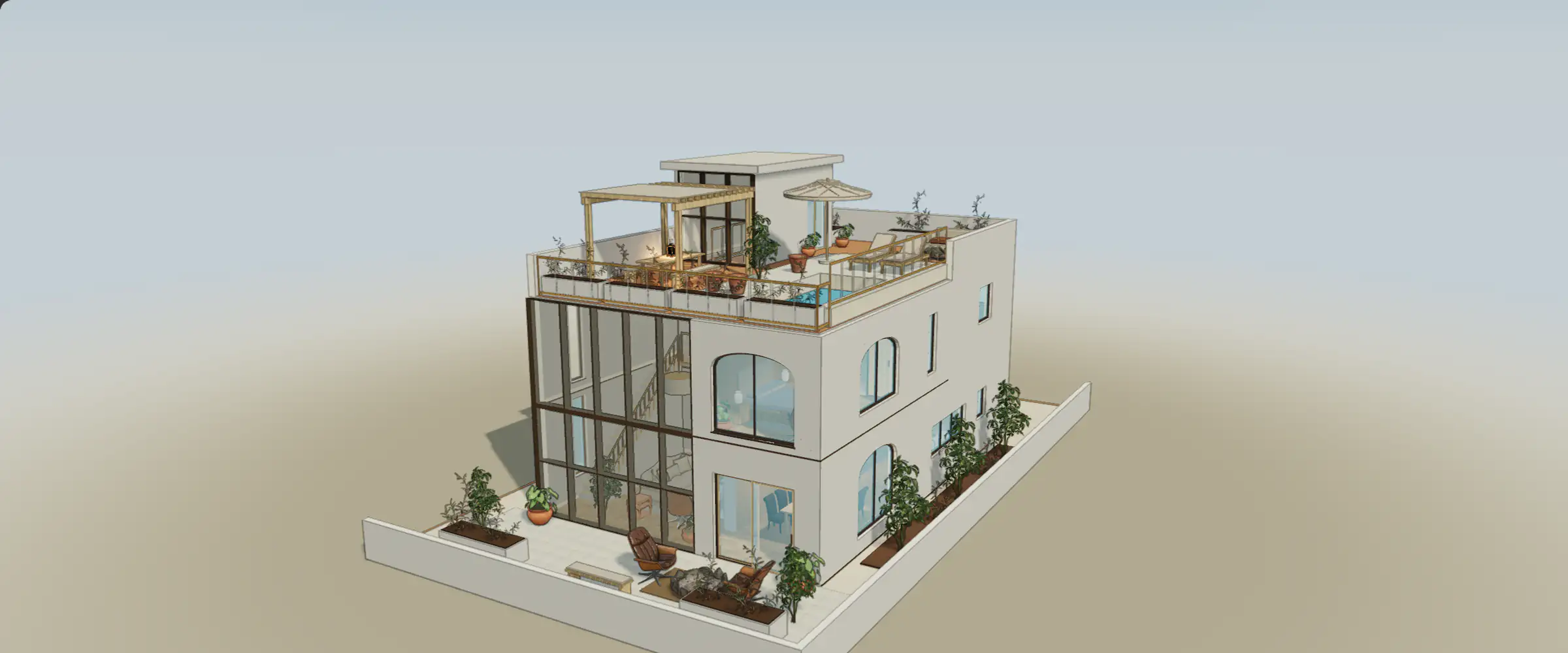
An anchored comment keeps a design question close to the thing it concerns. Use one for a furniture clearance, a finish choice or a measurement that still needs checking. A comment is feedback, not an instruction executed by the editor. In the sample, the example discussion is labeled and your own messages remain in this browser.
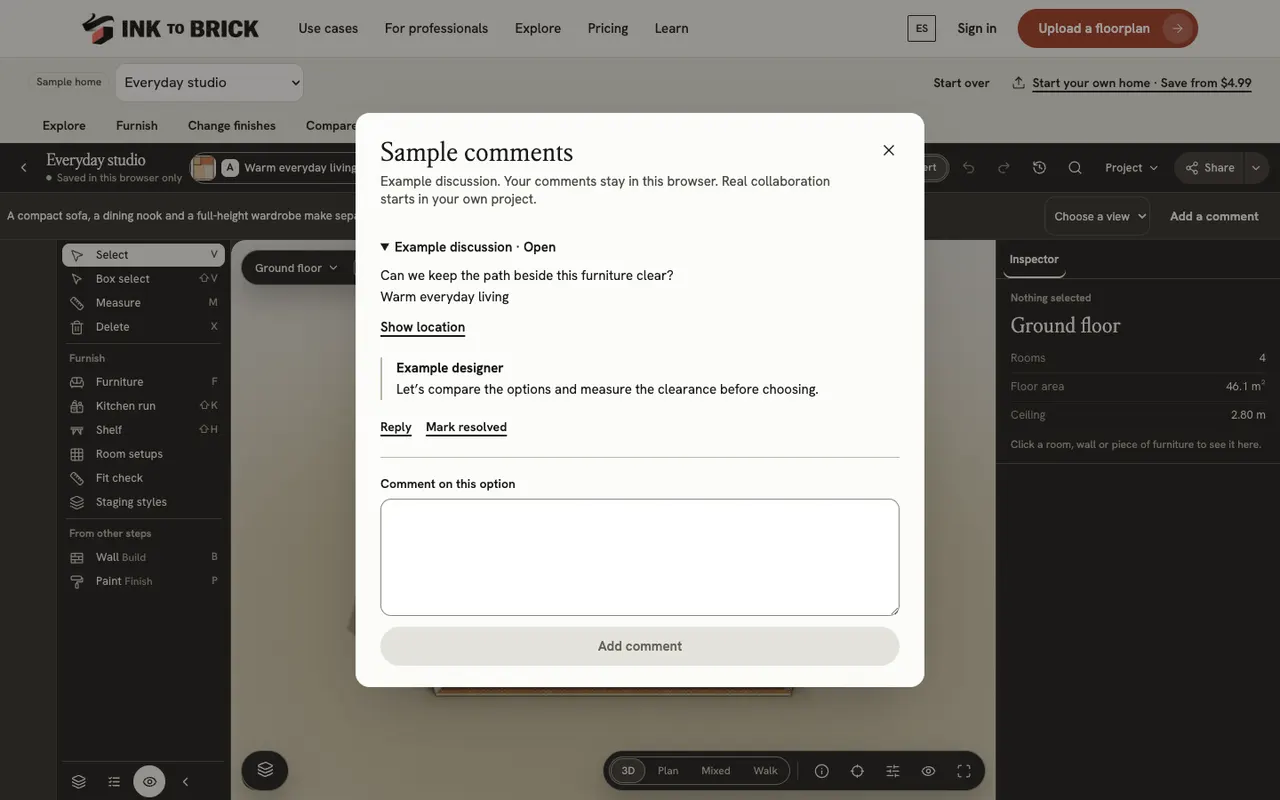
Add a question in context
- Open the home and design option you want to discuss. Select the relevant item or building element in the scene.
- Choose Add a comment. In Sample comments, check the selected context before writing a short, specific question.
- Choose Add comment once. Keep the thread open until it appears; if saving fails, read the error and retry without opening another copy of the editor.
Follow the discussion
- Open Sample comments and expand a thread. Read its option and revision context before responding.
- Choose Show location when available to return to the anchored element. If an element has been removed or the thread belongs to an earlier revision, inspect the original context instead of assuming it still describes the current scene.
- Choose Reply, write the answer and submit it. Choose Mark resolved after the question has been addressed, or Reopen if it needs another decision.
Try a useful review question
In the two-bedroom home, inspect the guest-room and office arrangement. Select the desk or nearby furniture and ask whether the room still works for an overnight guest. Reply with the passage or furniture measurement you checked. Resolving that thread records the discussion’s state; it does not move the furniture, accept an option or prove the measurement.
Local practice and real collaboration
With no scene item selected, a new comment addresses the option in general. Sample comments, replies and resolution state are stored separately for each home and option. They are not public comments, invitations or messages to another person. Switching options preserves the relationship to the option where feedback began. Clearing browser data or resetting that sample can remove the local discussion.
Real project review requires an account, access to the home and the relevant commenting or editing permission. Project comments, view-link replies and public comments have different audiences. Check the sharing destination and saved revision before sending a real link. Do not put private addresses or contact details in a public discussion.
Inspect a reference in 3D
Orbit the model and zoom toward an opening. Which spaces does it connect, and what is hidden from the opposite angle?